
Where to manage venues
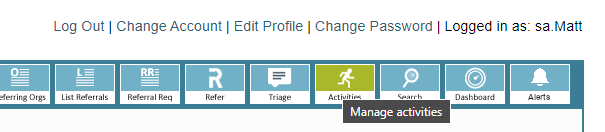
To manage venues, head to the 'Activities' page.
Select the ' Manage Venues' tab.
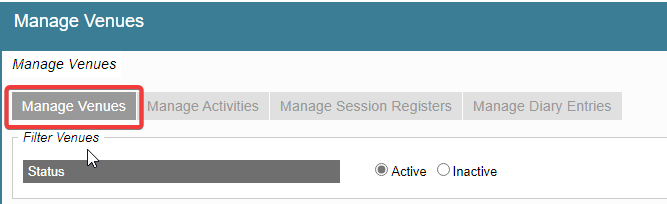
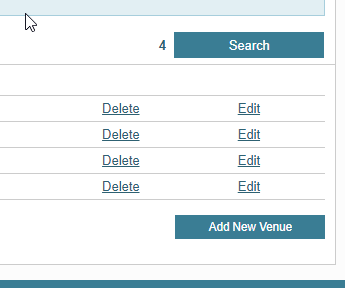
Select the 'Search' button to populate the existing venues.
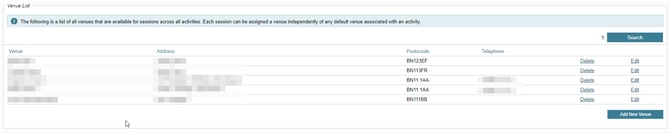
Click Delete next to the Venue
A message will appear asking you to confirm that you want to proceed with this action.
If the Venue is referenced by one or more sessions the Venue will not be deleted. The following message will display:

Please note: Deleting or making a Venue inactive cannot be undone
Adding a venue
Select 'Add New Venue'
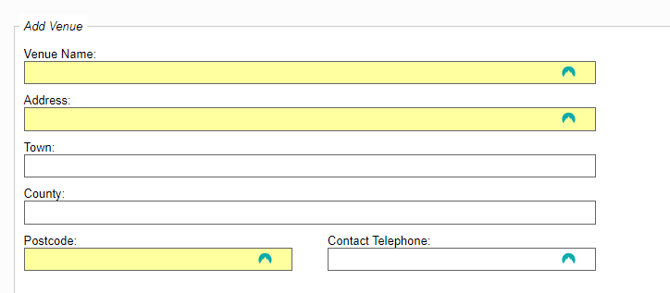
Fill in the 'Venue Name', 'Address' and 'Postcode' fields, the rest are optional.
Then click 'Save' in the bottom-right of the window.
Editing a venue
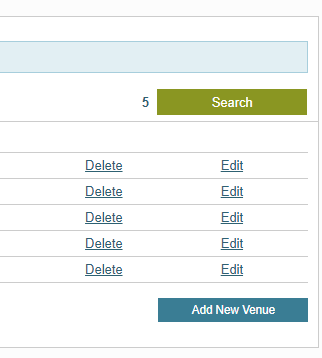
From the list of populated venues, select 'Edit' next to the venue which needs amending. You may want to click 'Search' again if you've just added a new venue.
From here you can change the contact details, address, integration IDs.
(External memberships will only show the relevant integration for those you have configured on your system, or none at all if one is not configured.)
Configuring 'Venue first' hosted webforms
If you’re using a hosted webform where the venue is selected first on the landing page, you can configure Self Referral and Health Professional referral forms to display specifically for each venue.
-
Click 'Edit Venue' for each venue you wish to configure.
-
Scroll down to the scheme name and select the 'Show venue in Online Referral Form' along with 'Scheme available for' Self Referral / HP Referral.
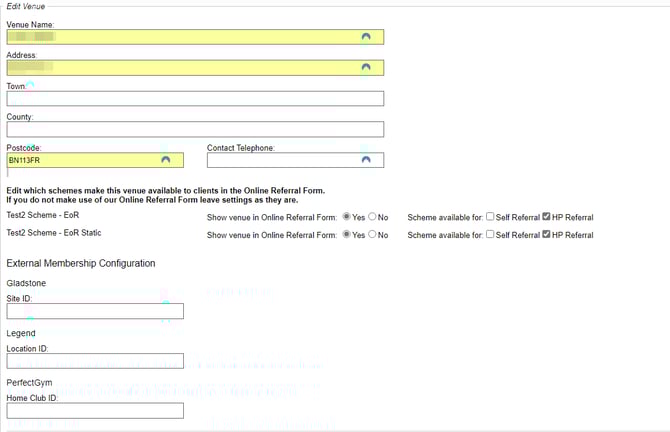
Once done, click the 'Save' button.
Deleting a venue
To delete a venue, select the 'Delete' button next to the venue you wish to remove.
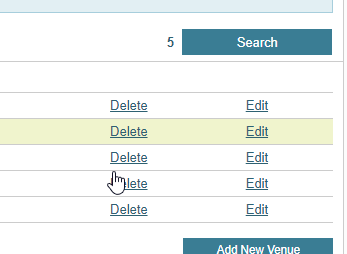
This will only work if this venue is not associated with any referrals or sessions, if they are associated you can just click the 'Delete' button and confirm to set the venue as 'Inactive' instead.

The venue being inactive will hide it from being selected by users.
Hiding a venue from your webform
Select the 'Edit button next to the venue you wish to hide from the webform.
Select 'No' on the webforms you wish this venue to be hidden on.
Click the 'Save' button to apply the changes.