
We don't allow DOCM, XLAM or XSLM file extensions as these allow macros which can contain malicious code. You can easily save the document as a non-macro enabled file format.
DOCM Conversion
Steps to convert .doc files to .docx [2]
- To confirm if the files are in .DOC format, you will notice the file type as “Microsoft Word 97 – 2003 Document” in Explorer as shown below:
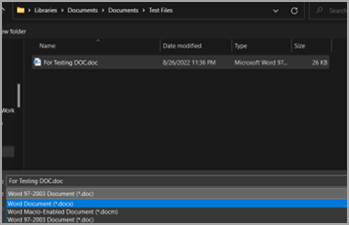
- Open the document > Navigate to File > Save As > Browse – which will open the below window. Make sure you are in the right path to save the workbook > Choose “Word Document (*.docx)" under “Save as type” > Select Save.
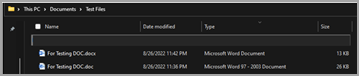
- Close and re-open the saved document (.docx) for the changes to effect. You will find the converted document in the same folder as type “Microsoft Word document” as shown below:
Note: Notice the file size reduced almost 2 times of the .doc file size.

.XLS, .XLAM & .XSLM Conversion
Steps to convert to .xls, .xlam & .xslm files to .xlsx [3]
- To confirm if the files are in .xls format, you will notice the file type as Microsoft Excel 97 – 2003 Worksheet in Explorer.
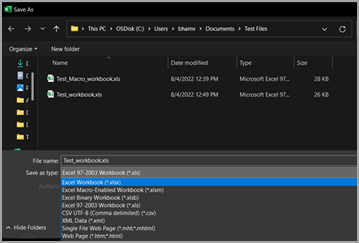
- Open the workbook > Navigate to File > Save As > Browse – which will open the below window. Make sure you are in the right path to save the workbook > Choose Excel Workbook (*.xlsx) under Save as type > Select Save.
- Close and re-open the saved workbook (.xlsx) for the changes to effect. You will see the converted workbook in the same folder as type Microsoft Excel Worksheet as shown below:

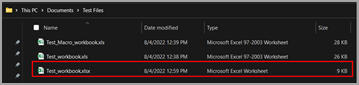
Note: You can also notice the file size reduced almost 3 times of the .XLS file size.